Apple's new Icon Composer and why your Mac app icon is too big
After creating an icon for my Mac app with Icon Composer, I realized that it's way bigger than rest of the apps when browsing the Applications directory.
For whatever reason, when archiving the app in Xcode, it didn't get the empty space around the icon, even though many sources on the Internet suggested it should work like that automatically.
Some people were even suggesting you're supposed to manually resize the Icon Composer-generated icon to be smaller. This seemed odd - surely Apple doesn't make this new fancy Icon Composer, yet require you to manually photoshop the icon to have space around it?

Now, two months later, while trying to get an iOS app released and creating an icon for it, I hit a validation error:
Invalid large app icon. The large app icon in the asset catalog in
"WalkingMateCompanion.app" can't be transparent or contain an alpha channel.
This led me to figure out what was causing both issues.
Against common wisdom, you are not meant to export the icon as PNG and put it to
your app's Assets.xcassets. You are in fact meant to just do a regular save
into e.g. YourIcon.icon, which is actually a directory, and then point in
project settings to the App Icon field to YourIcon (without .icon).
The .icon bundle is a collection of the icon's assets and a JSON file. This
all makes sense. With the raw .icon bundle, Xcode can package the app with an
icon appropriate for the target platform, such as a properly sized icon on
macOS.
#Walkthrough
- In Icon Composer, use File > Save (not Export) and save it as "YourAppIcon"
- What you get is actually a directory with .icon extension (e.g., YourAppIcon.icon)
- Drag and drop the saved .icon file (technically a directory) into your Xcode project and select "Copy Files to destination"
- In your project settings > General > scroll to "App Icons and Launch Screens"
- Find the "App Icon" field and set it to the name without the .icon extension (e.g., just "YourAppIcon")
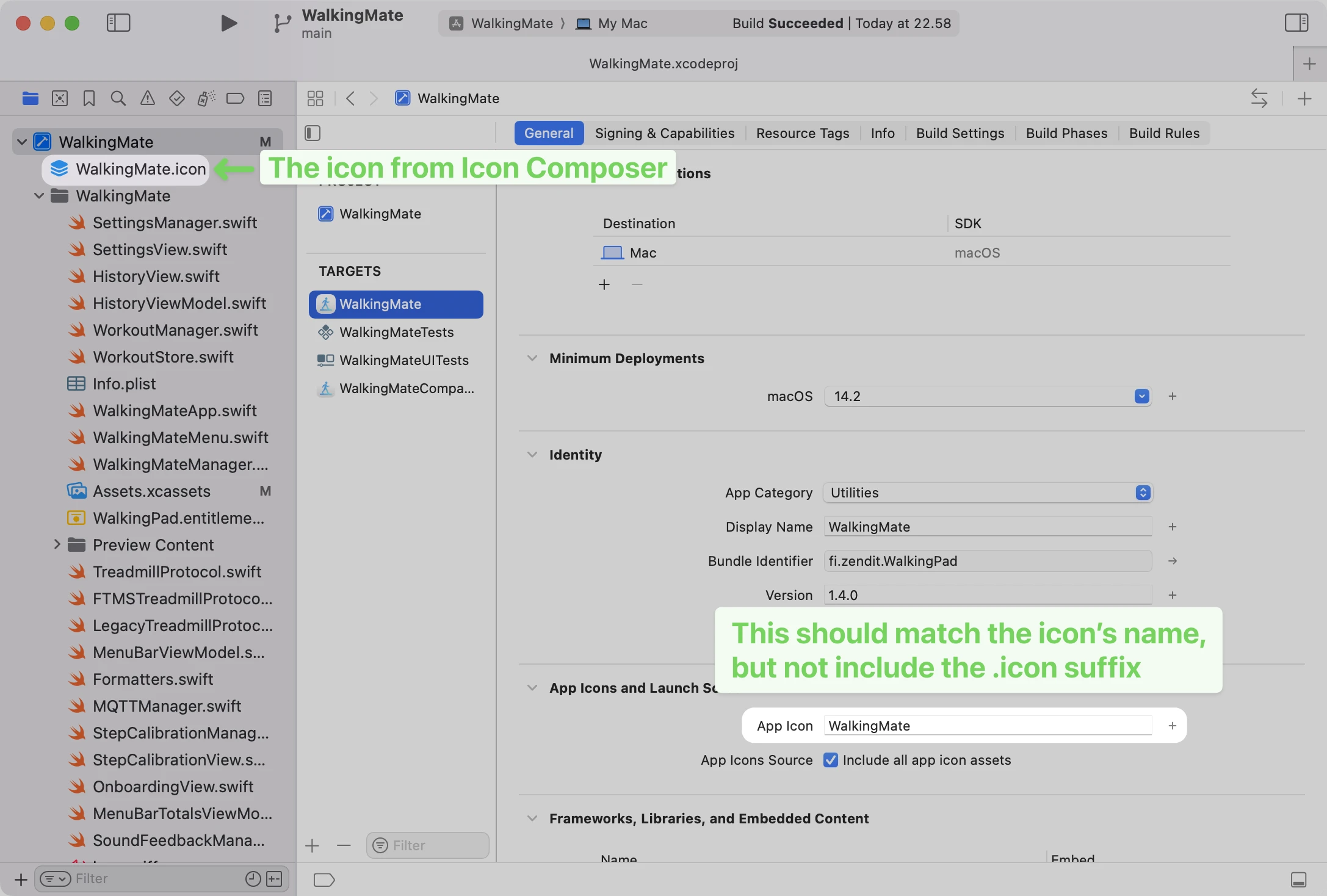
So it turns out that adding icons to Assets.xcassets is no longer the way to
do it when using Icon Composer, but this is hardly obvious.
#Credits
Thanks to @kdrxyz on reddit for the tip about using .icon bundles directly.