My setup, and why tmux workflow is better than ever

Over the years, tmux has become an essential part of my terminal-centric
workflow. For many, tmux is merely a screen replacement to be used on remote
servers, but for me it's closer to a tiling window manager for the terminal.
Briefly, what I think makes tmux so useful:
-
I work on many projects at a time, and recently, with many AI agents at a time. tmux allows isolating each project inside its own session, and within a project, each task or branch in its own window. Switching between them is a keypress away.
-
It's programmable. It can be scripted and extended to fit one's workflow. For example, I have a tool that allows opening recent directories (based on zoxide) into a new tmux session with sensible window layout based on the project.
-
It's composable. One of my favorite tmux features is
display-popup, which opens a floating terminal that can run anything. Combine it with fzf and you have a file picker. Small tools are wired together into something IDE-like.

Now, let me walk through the setup. I'll try to cover the most relevant parts. Installation instructions for tmux can be found elsewhere.
#Terminal
Just briefly about terminal choice. tmux itself is fairly terminal-agnostic, but some keybindings I prefer require terminal-level configuration.
I currently use Alacritty. It's GPU-accelerated and fast, though most terminal emulators are these days. I used iTerm2 for the longest time, but switched a few years ago. Main advantage of Alacritty over iTerm2 is being able to configure every aspect through a single TOML file, which is auto-reloaded automatically as you make changes. This makes it easy to version control and to make changes with AI tools. Good luck asking an AI agent to add the Cmd+1-9 mapping covered below through iTerm2's GUI settings.
I also like that Alacritty can run without any window chrome, giving a minimalistic fullscreen terminal.
#Core settings
The first thing most people change is the prefix key. The prefix key is basically how you tell tmux "the next key is a tmux command, not input for the terminal." The default C-b is hard to reach. For reasons I can't remember anymore, I've landed on C-f.
unbind C-b
set-option -g prefix C-f
A few other basic settings I consider essential:
set -g base-index 1              # Window numbers start at 1
setw -g mode-keys vi             # Vi bindings in copy mode
set -s escape-time 0             # No delay after Esc
set -g detach-on-destroy off     # Stay in tmux when session closes
set -g renumber-windows on       # No gaps after closing windows
set -g mouse on                  # Enable mouse interaction
The escape-time 0 is critical if you use (neo)vim. Without it, there's a
noticeable delay when pressing Escape. The detach-on-destroy off
means that when a session is closed, tmux switches to another session instead of
detaching. In practice, I rarely close sessions though.
I've recently changed my mind about mouse mode and enabled it. I use it for selecting and copying text, scrolling, and clicking around in terminal apps. This enables tmux's own mouse handling, such as selecting panes and scrolling through history. Terminal apps that support mouse input can receive mouse events even with tmux's mouse mode off.
For terminal capabilities, I have true color and undercurl support (the wavy underlines neovim uses for diagnostics):
set -g default-terminal "tmux-256color"
set-option -sa terminal-overrides ',xterm-256color:RGB'
set -as terminal-overrides ',xterm-256color:smxx=\E[9m'
set -s extended-keys on
set -s extended-keys-format csi-u
set -as terminal-overrides ',*:Smulx=\E[4::%p1%dm'
set -as terminal-overrides ',*:Setulc=\E[58::2::%p1%{65536}%/%d::%p1%{256}%/%{255}%&%d::%p1%{255}%&%d%;m'
I also enable strikethrough support and extended key reporting, which lets supporting terminal apps distinguish more key combinations.
#Vim-like splits and navigation
I've configured splits to resemble vim:
bind s split-window -v -c "#{pane_current_path}"
bind v split-window -h -c "#{pane_current_path}"
In vim, :split creates a horizontal division (panes stacked vertically), and
:vsplit creates a vertical division. With these bindings, prefix
s and prefix v behave like their vim
counterparts C-w s and C-w v.
The -c "#{pane_current_path}" ensures new panes start in the same directory. I
use the same for new windows:
bind c new-window -c "#{pane_current_path}"
For resizing, I use characters that visually suggest the direction:
bind < resize-pane -L 10
bind > resize-pane -R 10
bind + resize-pane -D 10
bind - resize-pane -U 10
One of the most useful built-in bindings is prefix z, which zooms the current pane to fill the entire window. Press it again to restore the layout. Great when you need to focus on one pane temporarily.
I also bind global keys (no prefix needed) to reorder windows with
Ctrl+Shift+←/→. The -d flag keeps
focus on the moved window.
bind-key -n C-S-Left swap-window -d -t -1
bind-key -n C-S-Right swap-window -d -t +1
I also use Cmd+1-9 for switching windows, similarly to browser tabs. This is not a tmux setting; it's an Alacritty keybinding that sends the prefix followed by the window number:
[[]]
= "\u00061" # C-f 1
= "Key1"
= "Command"
# ... repeated for 2-9
The \u0006 is the ASCII code for Ctrl+F (my prefix). So
Cmd+3 sends C-f 3, which tmux
interprets as "switch to window 3".
Similarly, Cmd+h/j/k/l switches panes. The Alacritty binding sends prefix + arrow key:
[[]]
= "\u0006\u001B[D" # C-f Left
= "H"
= "Command"
# J -> Down, K -> Up, L -> Right
On macOS, Cmd+h is intercepted by the system to hide the window. See how to work around it.
#Appearance
When working with multiple panes, it helps to see at a glance which one is active. I use slightly different background colors:
set-window-option -g window-style 'bg=#101010'
set-window-option -g window-active-style 'bg=#161616'

set -g pane-border-style fg=colour238,bg=#101010
set -g pane-active-border-style fg=colour113,bg=#121212
The difference between #101010 and #161616 is subtle. Inactive panes are
just a bit darker. The active pane also gets a green border. It's enough to
notice without being too distracting.
My status bar style is fairly pedestrian compared to others I've seen. I care most that it's clear which window is active.
set -g status-bg colour233
set -g status-fg white
set -g status-left-style bg=colour233
set -g status-left '#[fg=green]#S '
set -g status-right '#[fg=green]%d.%m. %H:%M'
set-window-option -g window-status-current-style fg=black,bg=green

#Copying text
tmux has a copy mode (prefix [) with vi-style navigation. I use it when I need to scroll back through history. With mouse mode enabled, I also use the mouse to select and copy text and scroll through output. For copying visible text, I still use the terminal's rectangular selection too.
Regular selection would span the entire terminal width, grabbing text from adjacent panes. Rectangular selection lets me draw a box around exactly the text I want from a single pane. In Alacritty, holding Ctrl+Shift while selecting enables this. Most terminals have a similar option. The downside is it doesn't work well with wrapped text.
I'm also working on an experimental tool, tmux-snaglord, that makes copying program output easier.
#Popup tools
This is where things get a bit more interesting. As mentioned, tmux's
display-popup command opens a floating terminal window that can run any
command. When the command exits, the popup closes. Combined with for example
fzf, this pattern is incredibly powerful.
#Session switching
bind C-j display-popup -h 15 -w 30 -E "tmux-session-switcher"
tmux-session-switcher opens an fzf interface listing all sessions. I can type to filter, and selecting one switches to it. Since sessions are sorted by recency, hitting C-j Enter without typing anything switches to the previous session.
An alternative to this is the built-in choose-session command.

#Opening projects as a window
bind C-o display-popup -E "tmux-zoxide-window"
I use zoxide to track the directories I visit so that I can easily cd into
them. This binding shows a fzf list of recent directories, and selecting one
opens it in a new tmux window, with the name of the directory as the name of the
window. Occasionally useful.
#File picker
bind C-f display-popup -E "tmux-file-picker"
I wrote about tmux-file-picker in a separate post. It's an fzf-based file picker that inserts the selected path into the active pane. An absolute must-have when working with Claude Code or other AI coding TUI programs.
#Task management
I also use popups for Aven, my task manager. I can check project tasks or add a new task without leaving the terminal.
bind C-w display-popup -E -d "#{pane_current_path}" "aven tui -p"
bind t display-popup -E -d "#{pane_current_path}" -w 120 -h 30 "aven tui --add-task-only"
prefix C-w opens the current project's tasks, and prefix t opens task creation. The popup starts in the current pane's directory so Aven knows which project I'm working in.
#Session management
I generally keep a tmux session for each project. Switching between them is instant, and each session preserves its own editor state, dev servers, and shell sessions. I mostly use prefix C-e to open projects with tmux-zoxide-session:
bind C-e display-popup -E "tmux-zoxide-session"
It shows an fzf list of recent directories (via zoxide), and selecting one creates a new session (or switches to it if one already exists).
For other session operations:
bind S command-prompt 'rename-session %%'
bind N new-session
#Parallel AI agents
With the emergence of AI coding tools, it's become practical to have multiple agents working on different tasks at the same time. One might be adding a feature while another fixes a bug.
The problem is that when they share the same directory, they step on each other's changes - broken builds, type errors from half-finished work, and diffs that mix unrelated changes.
The solution is git worktrees, which provide separate working directories for each task. I use workmux to pair them with tmux windows: it creates a worktree and opens it in a new window. This pairing of one window per task feels very natural. I can switch between windows to check on agents, review their changes, or provide feedback. I use Cmd+E to open the workmux dashboard, where I can check on agents and jump to their windows.
Workmux also has a sidebar that keeps agent statuses visible while I work, without opening the dashboard. I can see which agents are working, waiting for input, or done, and click one to jump to its pane. I also use Option+N/P to move between agents without the prefix.
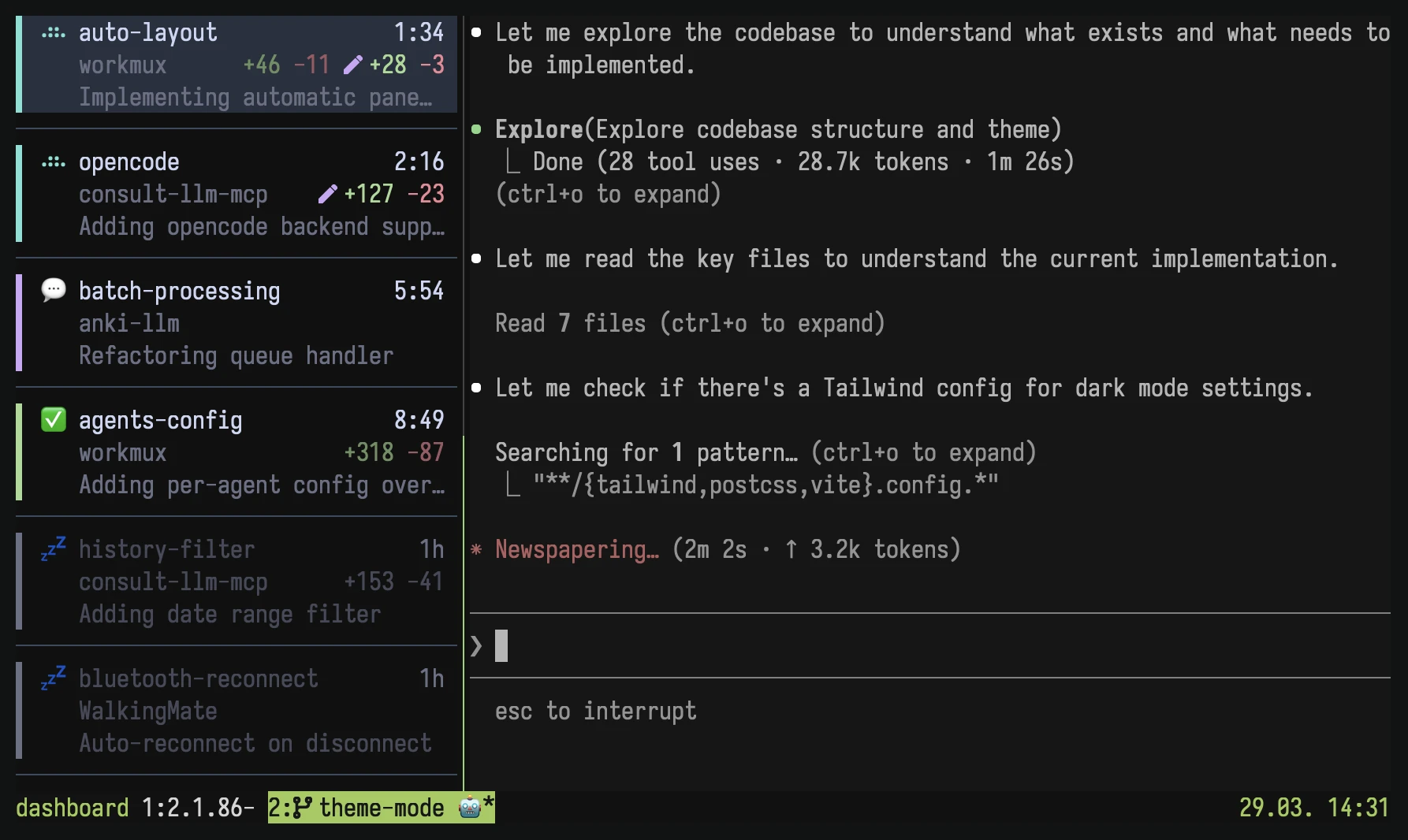

When a task is done, I merge the branch, delete the worktree, and close the window. I wrote more about it in a separate post.
#Plugins
TPM handles plugin management. I use tmux-logging to save a pane's entire scrollback history to a file. It's occasionally useful.
For a tmux user, losing your active sessions due to some crash is a nightmare. I use tmux-resurrect and tmux-continuum to automatically save my sessions, windows, pane layouts, and scrollback every 30 minutes. It won't bring running processes back exactly as they were, but getting my panes back in their directories, with the previous output still visible, makes it much easier to pick up where I left off.
set -g @plugin 'tmux-plugins/tpm'
set -g @plugin 'tmux-plugins/tmux-logging'
set -g @plugin 'tmux-plugins/tmux-resurrect'
set -g @plugin 'tmux-plugins/tmux-continuum'

set -g @continuum-save-interval '30'
set -g @resurrect-capture-pane-contents 'on'
#Keybindings summary
| Key | Action |
|---|---|
| Splits & windows | |
| prefix s | Horizontal split |
| prefix v | Vertical split |
| prefix c | New window |
| prefix x | Kill pane |
| prefix & | Kill window |
| Pane resizing | |
| prefix < | Resize left |
| prefix > | Resize right |
| prefix + | Resize down |
| prefix - | Resize up |
| prefix z | Zoom pane (toggle) |
| Navigation | |
| Cmd+1-9 | Switch to window N |
| Cmd+h/j/k/l | Switch panes |
| Ctrl+Shift+←/→ | Reorder windows |
| Popup tools | |
| prefix C-j | Session switcher |
| prefix C-o | Zoxide window opener |
| prefix C-f | File picker |
| prefix C-w | Project tasks |
| prefix t | Add task |
| Sessions | |
| prefix C-e | Open/switch project |
| prefix S | Rename session |
| prefix N | New session |
I'll keep this post updated as my setup evolves.
#Full configuration
# ==============================================================================
# CORE SETTINGS
# ==============================================================================

# Prefix configuration
unbind C-b
set-option -g prefix C-f
bind-key a send-prefix

# General behavior
set -g default-shell /opt/homebrew/bin/zsh
set -g base-index 1                  # Start window indexing at 1
set-option -g renumber-windows on    # Renumber windows when one is closed
set -g detach-on-destroy off         # Don't detach when killing a session
set -g mouse on                      # Enable mouse interaction
set -s escape-time 0                 # No delay for escape key press
set-option -g display-time 4000      # Duration of status messages
set-option -g focus-events on        # Focus events enabled for terminals that support it
setw -g mode-keys vi                 # Vi key bindings in copy mode
setw -g aggressive-resize on         # Aggressive resize for shared sessions
set -g main-pane-width 110           # Main pane width for specific layouts

# ==============================================================================
# TERMINAL & COLOR SUPPORT
# ==============================================================================

set -g default-terminal "tmux-256color"
set-option -sa terminal-overrides ',xterm-256color:RGB'
set -as terminal-overrides ',xterm-256color:smxx=\E[9m'
set -s extended-keys on
set -s extended-keys-format csi-u

# Undercurl & Underscore colors support
set -as terminal-overrides ',*:Smulx=\E[4::%p1%dm'
set -as terminal-overrides ',*:Setulc=\E[58::2::%p1%{65536}%/%d::%p1%{256}%/%{255}%&%d::%p1%{255}%&%d%;m'

# ==============================================================================
# CLIPBOARD
# ==============================================================================

set -g set-clipboard on

# ==============================================================================
# APPEARANCE
# ==============================================================================

# Status Bar
set -g status-bg colour233
set -g status-fg white
set -g status-left-style bg=colour233
set -g status-left '#[fg=green]#S '
set -g status-right '#[fg=green]%d.%m. %H:%M'
set -g status-left-length 20
set -g status-right-length 120

# Window Status
set-window-option -g window-status-current-style fg=black,bg=green

# Window Styles (Dim inactive windows)
set-window-option -g window-style 'bg=#101010'
set-window-option -g window-active-style 'bg=#161616'

# Pane Borders
set -g pane-border-style fg=colour238,bg=#101010
set -g pane-active-border-style fg=colour113,bg=#121212

# ==============================================================================
# KEY BINDINGS
# ==============================================================================

# Config Reload
unbind r
bind r source-file ~/.tmux.conf

# Window Management (Split like Vim)
bind s split-window -v -c "#{pane_current_path}"
bind v split-window -h -c "#{pane_current_path}"
bind c new-window -c "#{pane_current_path}"

# Navigation
bind -n F11 previous-window
bind -n F12 next-window
bind m choose-tree
bind k choose-session

# Swap Windows
bind-key -n C-S-Left swap-window -d -t -1
bind-key -n C-S-Right swap-window -d -t +1

# Copy Mode (Vim-like)
bind -T copy-mode-vi v send-keys -X begin-selection
bind -T copy-mode-vi C-v send-keys -X begin-selection \; send-keys -X rectangle-toggle
bind -T copy-mode-vi y send-keys -X copy-pipe-and-cancel "pbcopy"

# Pane Resizing (Vim-like)
bind < resize-pane -L 10
bind > resize-pane -R 10
bind + resize-pane -D 10
bind - resize-pane -U 10

# Session Management
unbind S
bind S command-prompt 'rename-session %%'
bind N new-session
# Create new session from current window
bind B command-prompt -p "New session name:" "new-session -d -s '%%'; move-window -t '%%:'; switch-client -t '%%'"

# ==============================================================================
# CUSTOM POPUPS & SCRIPTS
# ==============================================================================

bind C-j display-popup -h 20% -w 20% -E "tmux-session-switcher"
bind C-o display-popup -E "tmux-zoxide-window"
bind C-e display-popup -E "tmux-zoxide-session"

# File Pickers
bind C-f display-popup -h 60% -w 60% -E "tmux-file-picker"
bind C-r display-popup -h 60% -w 60% -E "tmux-file-picker -d"
bind C-g display-popup -h 60% -w 60% -E "tmux-file-picker -g"
bind C-d display-popup -h 60% -w 60% -E "tmux-file-picker --zoxide --dir-only"
bind C-z display-popup -h 60% -w 60% -E "tmux-file-picker --zoxide"

# Task Management
bind C-w display-popup -E -d "#{pane_current_path}" "aven tui -p"
bind t display-popup -E -d "#{pane_current_path}" -w 120 -h 30 "aven tui --add-task-only"

# Custom Tools (Snaglord)
bind C-p display-popup -h 70% -w 70% -E "tmux-snaglord"

# ==============================================================================
# PLUGINS
# ==============================================================================

set -g @plugin 'tmux-plugins/tpm'
set -g @plugin 'tmux-plugins/tmux-logging'
set -g @plugin 'tmux-plugins/tmux-resurrect'
set -g @plugin 'tmux-plugins/tmux-continuum'

set -g @continuum-save-interval '30'
set -g @resurrect-capture-pane-contents 'on'

# Initialize TMUX plugin manager (keep at the very bottom)
run '~/.tmux/plugins/tpm/tpm'